 kafadengi

































Radar trips
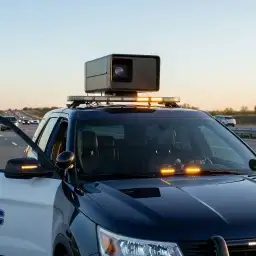
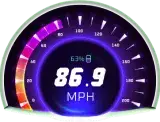
Start a trip and watch your speed, total distance and average speed. See nearby radars on a list or on the map. Finish the trip and read your trip brief.


Start a radar trip, switch on a head-up display, explore maps and satellite views, and keep your car in shape with built-in care guides.
Free download · Android
Obey traffic laws and drive safely. Radar alerts may be restricted where you live.
Get Radar & Maps free
Start a trip and watch your speed, total distance and average speed. See nearby radars on a list or on the map. Finish the trip and read your trip brief.
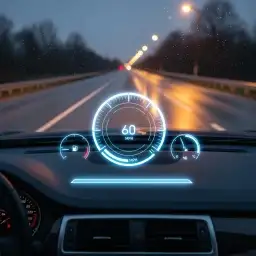
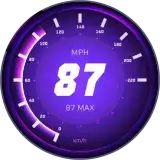
Project your speed on a HUD with a choice of looks: Classic Dial, Neo Circle, Velocity and Turbo Flow.
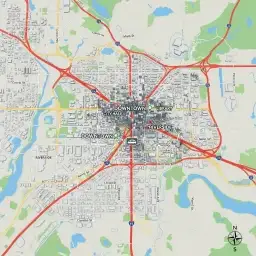
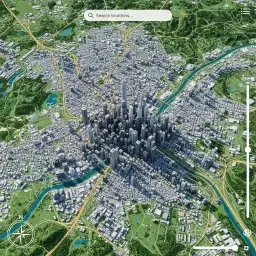
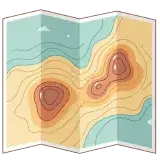
Switch between road map, satellite map and terrain map, and search for a place.
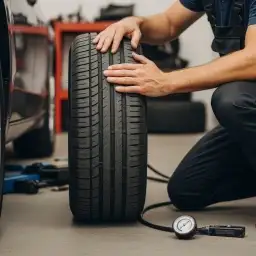
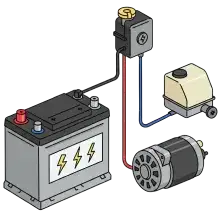
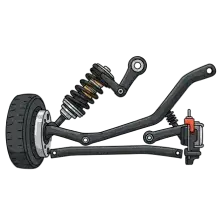
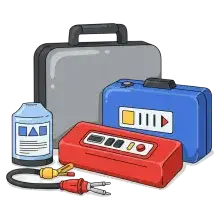
Read guides in six groups: tire care, brake care, engine and fluids, battery and electrical, suspension and steering, and safety and preparedness.
Browse landmarks by continent, read their stories and open them on the map.
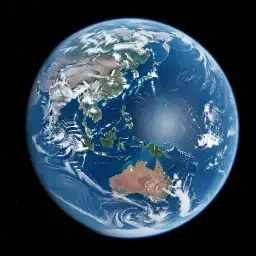
Spin the globe to land on a random place, then see it on the map.
Change the distance unit, set the warning loudness, switch voice warnings on or off and use fade in and out for warning sounds.
Look back at your past trips with start time, date, duration, distance and speeds.
Open Radar and tap Start My Trip, or pick a HUD style or a map from the menu.
See your speed and nearby radars while you keep your eyes on the road. Obey traffic laws.
Finish the trip and read your distance, average speed and max speed. Find it again in History.
Safety first: set up the app before you drive, never handle your phone while driving and check where radar alerts are allowed.
The app is free to download from Google Play. It shows ads, and some features need an optional subscription. Prices are shown in the app and on Google Play.
Rules differ by country and region, and speed-camera alerts are restricted in some places. You are responsible for checking and following local laws. Always obey speed limits and traffic rules, and never use your phone while driving.
Maps, satellite views, landmark stories and the radar database update use the internet. Check the app on your device to see what is available with a weak or missing connection.
Radar, HUD and map features use your location, and the app asks for it when you open them. Notifications are optional. The Google Play Data safety section lists the details, and our Privacy Policy explains how Kafadengi handles personal data.
The app interface is translated into many languages. Guides and landmark texts follow the language settings of the app.
Radar data and maps can be incomplete or out of date, and GPS accuracy varies. Treat the app as an aid, not as a substitute for your own attention on the road.
Download Radar & Maps and start your first trip.